skip to main |
skip to sidebar
Latest Entries »
Internet Access
The web enabled feature of Tally offers direct internet access. It means that a user can directly log on to Tally's website i.e. www.tallysolutions.com. If you want to access internet directly without opening the web sever then click on the Tally's website address displayed on the left side of the Product Info area.
E-mail
Without wasting much of a time and doing much of a manual work a user should take advantage of this medium of communication. This means of communication is not only time saving but also reduces the cost. It helps in quick transfer of information. To use this feature you need to click on the button E-Mail which appears on the horizontal button bar or press Alt + M. This E-Mail button is not always active, it is active only in Voucher entry screens and Report screens. Then the Mailing Day Book will appear.
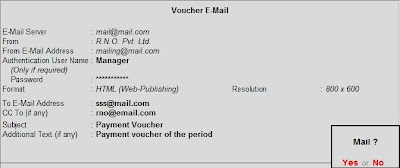
Now let me tell you the some of the web enabled features of Tally which reduces more of the manual work. The web enabled features of Tally helps you to reduce paper work and enables you to send reports, invoices and orders using e-mail from Tally. As it can be send through e-mail the user need not have to send printed reports. It also helps the user to upload reports on the website.
In order to split financial year Press Alt + F3 at Gateway of Tally. It will open the company info. menu.
Select the option Split Company Data.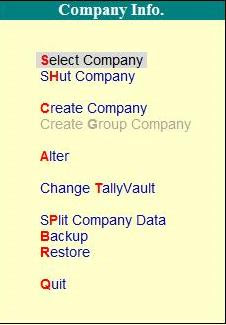 Then select the company whose data is to be split.
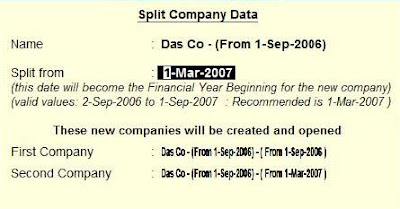
Tally recommends the users to use a split-off-date based on the existing financial year range data of the company.Tally allows any date as the split point but it is recommended that the split point is set as the beginning of the latest financial year.
In Tally split occurs in a set of two periods. For example there are three years data in the period 01/04/2007 to 31/03/2010, for a company in Tally and you want to split them into three separate companies. Then while splitting select the beginning of the latest financial year as Tally would prompt you to do so.
After the dates are confirmed, two new companies will be created and opened on the Split Company Data Screen. First company will have the data for the period 01/04/2007 to 31/03/2009 and the second company will have the data for the period 01/04/2009 to 31/03/2010.
The following activities are to be done before splitting the financial year in Tally:
- Ensure that all the unadjusted gains or losses have been fully adjusted by journal entries.
- There should not be any pending Purchase bills or Sales bills. If found any then you may account them to the "Bills Pending" Account or respective party accounts.
- It is not compulsory but it is better to keep a back up of the data which already exists.
Tally is a flexible software which has limitless accounting period(not in case of educational version). It allows the entry of data for any number of years which is a tremendous benefit for the user. In cases where there is huge volume of data in the past, it causes greater overhead on the system. The Split Financial year enables you to retain most benefits and solve this overhead problem. When you split the data of a company then the following things happen:
- For the respective split periods new companies are created.
- Full data is retained in the original company.
In order to assess the performance of various units of an industry, an organisation often compares its financial data with other units. Tally generates such comparitive reports. You can view reports with columns representing different companies alongside each other but only of those companies which are active.To add new columns to a report you are viewing Press Alt + C and select the new company from the list of active companies. Then give the data range for the report. Now a new column is added to your report. You can add any number of companies.
There is a Auto Column(press Alt + N) button too which enables you to bring up the same report for different companies in columns, with a Total Column which shows total of all companies.


