
Additional Duty Ledger Account
If additional Excise Duty is applicable you have to create a new ledger account named Additional Excise Duty under the group Excise Duty. At the option 'Method of Calculation' field that appears on mentioning percentage of calculation, select Additional Duty. As already explained, other options are to be entered while creating excise duty ledger account. This duty is calculated as a percentage or part of the excise duty.
Creation of Supplier's/Customer's Ledger
A supplier and customer ledger account has to be created for Excise Duty transactions. The Excise Details option at the Tax Information portion of the ledger creation /alteration screen is to be set as 'yes'. The sub-screen will appear. There you have to enter the following details:
Excise Regn. No. - Here you have to enter the Excise Registration number of the supplier/customer.
Range - Here you have to enter the range under which the supplier/customer's company is registered.
Division - Here you have to enter the Division under which the supplier/customer's company is registered.
Commissionerate - Here you have to enter the name of the Commissionerate.
Nature of Purchase - Here you have to select the appropriate nature of purchase from the list provided.
Latest Entries »
Nov 22, 2009
Nov 21, 2009
Ledger Account set up for Excise Duty Part 1
Excise Duty Group and Excise Duty Ledger creation for additional Excise Duty is discussed here under:
Excise Duty Group
A sub-group named Excise Duty is to be created from Accounts Info under Duties and Taxes.
Excise Duty Ledger
Excise Duty ledger has to created under the group Excise Duty. As the Excise Rate vary for different items, it is better to create different ledgers for different rates like, Excise Duty 5%, Excise Duty 10%, etc. During Ledger creation Set the option "Inventory Values are affected" to 'No' as it is only required for sales and purchase entries. Write the rate in percentage in the field 'Percentage of Calculation'. Select "Tax based on Item Rate" from Type of Duty list in the 'Method of Calculation Field'.
Excise Duty Group
A sub-group named Excise Duty is to be created from Accounts Info under Duties and Taxes.
Excise Duty Ledger
Excise Duty ledger has to created under the group Excise Duty. As the Excise Rate vary for different items, it is better to create different ledgers for different rates like, Excise Duty 5%, Excise Duty 10%, etc. During Ledger creation Set the option "Inventory Values are affected" to 'No' as it is only required for sales and purchase entries. Write the rate in percentage in the field 'Percentage of Calculation'. Select "Tax based on Item Rate" from Type of Duty list in the 'Method of Calculation Field'.
Nov 20, 2009
Activation Features of Excise Duty
Press F11 and then press F3 to get the Statutory and Taxation menu. Set the options "Enable Dealer-Excise" and "Set /Alter Dealer-Excise Details". You will be forwarded to Excise Details screen. Enter the following details there:
ECC/PAN Based Regn/Code No. : Enter the Excise Control Code(ECC) or PAN number alloted to the organisation.
Commissionerate : Here enter the name of the commissionerate which controls the excise matters of the organisation.
Range Code : Here you have to enter the range code under which the organisation falls.
Range Name : Here you have to enter the range name under which the organisation falls.
Range Address : Enter the address of the range here.
Division Code : The Excise Division Code is to be entered here.
Division Name : The Excise Division Name is to be entered here.
Division Address : The Excise Division Address is to be entered here.
ECC/PAN Based Regn/Code No. : Enter the Excise Control Code(ECC) or PAN number alloted to the organisation.
Commissionerate : Here enter the name of the commissionerate which controls the excise matters of the organisation.
Range Code : Here you have to enter the range code under which the organisation falls.
Range Name : Here you have to enter the range name under which the organisation falls.
Range Address : Enter the address of the range here.
Division Code : The Excise Division Code is to be entered here.
Division Name : The Excise Division Name is to be entered here.
Division Address : The Excise Division Address is to be entered here.
Excise Duty-Configuration Set Up
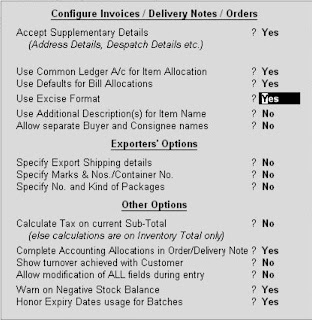
For Excise Duty configuration set up press F12 at Gateway of Tally. Set the options "Use Excise Format" and "Accept Supplementary Details" to 'Yes'.

Excise Duty
Another type of Indirect Tax is Excise Duty. It is charged on the manufacture of specified excisable goods at the time, when the goods leave the factory for sale. For Excise Duty, the taxable event is manufacture of goods. Under the Rules of Central Excise, organisations have to submit Excise Invoice under the Central Excise.
Nov 18, 2009
ST-3 Report
Return for Service Tax is supposed to be filed in Form ST-3 with the Service Tax Department . To print the return in Form ST3, select the option under Service Tax Reports menu. There you will get the Service Tax Return containing details with regard to the value of taxable service charged, value of taxable service realized, Service Tax paid and due. To get a print of this form, from Gateway of Tally, select Display then Statutory Report, select Service Tax Reports then ST3 Report.
Subscribe to:
Comments (Atom)

Important Links and searches


