
PayCheck 2.0 is a PAYROLL Management software.
To download this software CLICK HERE>>>
Latest Entries »
Feb 25, 2010
Feb 23, 2010
Importing Voucher Data to Tally
From the options at Import of Data select the option Voucher then press enter or double click on the option.
 At the field Import file name specify the full path of the data with correct file extension(including drive and folder if any) from which the vouchers are to be imported.
In the Format field(if given) select the format of Tally data you want to import.
 At the field Import file name specify the full path of the data with correct file extension(including drive and folder if any) from which the vouchers are to be imported.
In the Format field(if given) select the format of Tally data you want to import.
Importing Master Data to Tally
From the given option under Import of Data select Masters and press enter or double click on the option. Then specify the location of the file, that is to be imported.
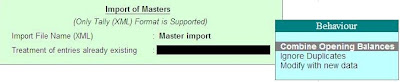
At the field 'Treatment of entries already existing' select the suitable option.
If you want to include the opening balance figures of masters of the existing company which matches with the masters of the importing company then select the option 'Combine Opening Balance'.
If you don't want to include old master records and want to import only new masters then select the option 'Ignore Duplicates'.
If you want the old master records to be over written by the new master record which you are importing then select the option 'Modify with new Data'.
At the field of master data format of Tally select the format in which you want to import the data

At the field 'Treatment of entries already existing' select the suitable option.
If you want to include the opening balance figures of masters of the existing company which matches with the masters of the importing company then select the option 'Combine Opening Balance'.
If you don't want to include old master records and want to import only new masters then select the option 'Ignore Duplicates'.
If you want the old master records to be over written by the new master record which you are importing then select the option 'Modify with new Data'.
At the field of master data format of Tally select the format in which you want to import the data
Importing Data to Tally
The data transferred from a computer to another can be used/imported into Tally at the receiver's computer system.
To import any data:
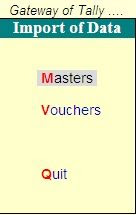
At Gateway of Tally select the option Import of Data. There you will find two options
To import any data:
At Gateway of Tally select the option Import of Data. There you will find two options
- Masters
- Vouchers i.e. transactions.

Feb 15, 2010
Export of Vouchers Data
Select the option Display from the Gateway of Tally, then select Day Book. Press F2 to enter the period, during which the voucher entries passed will be exported. After entering the period press Alt + E or Export. It will take you to the export screen where you have to press Esc if you want to edit the default settings. Then there you have to enter the following details :
Format : Here you have to select the format of the data from the given list in which you want the report to be exported.
Output File name : In this option you have to enter the path of the file name where you want the data to be exported or stored.
At Report Configuration make the necessary changes as per your need.
"Select the Vouchers to show" : At this option select whether you want to export only Accounting entries or only Inventory related entry or both.

Format : Here you have to select the format of the data from the given list in which you want the report to be exported.
Output File name : In this option you have to enter the path of the file name where you want the data to be exported or stored.
At Report Configuration make the necessary changes as per your need.
"Select the Vouchers to show" : At this option select whether you want to export only Accounting entries or only Inventory related entry or both.

Export of Masters Data
Select the option Display from the Gateway of Tally, then select List of Accounts. Click on Export or press Alt + E. Then it will take you to the export screen where you have to press Esc if you want to edit the default settings. There you have to enter the following details :
Format : Here you have to select the format of the data from the given list in which you want the report to be exported.
Output File name : In this option you have to enter the path of the file name where you want the data to be exported or stored.
Type of Masters : Select from the given list the type of master you want to export.
Format : Here you have to select the format of the data from the given list in which you want the report to be exported.
Output File name : In this option you have to enter the path of the file name where you want the data to be exported or stored.
Type of Masters : Select from the given list the type of master you want to export.

Subscribe to:
Posts (Atom)

Important Links and searches


