
Payroll : It is series of accounting transactions dealing with payment of employees for services rendered by them, after processing of various statutory requirements.
It not only just includes salaries but wages, commission, bonus, vacation allowances, sick-leave pay and value of taxable fringe benefits also. It also includes statutory deductions of money from the employees, like provident fund, employees state insurance, professional tax and so on.
The Payroll feature is very useful as it is integrated with accounting to give the user the benefits of simplified Payroll processing and accounting.
Latest Entries »
Jun 29, 2010
Rewriting
If some problem arises in reading the data then in that case rewriting or repairing of data is to be done. In order to rewrite or repair press Ctrl + Alt + R at Gateway of tally and select the company that is to be rewritten. Press 'y' to start rewrite.
NOTE: It is advised that a back up should be kept before rewriting as Tally drops those data which are incomplete or damaged. Tally writes the reference of dropped data in a file tally.rew, its contents can be viewed using any text editor like notepad.

NOTE: It is advised that a back up should be kept before rewriting as Tally drops those data which are incomplete or damaged. Tally writes the reference of dropped data in a file tally.rew, its contents can be viewed using any text editor like notepad.

Jun 28, 2010
Restore
If the data stored in your hard disk get damaged or deleted for reasons below your control. In such a sitution you can get back the data by copying back the data kept at another place through Back Up process. This process of getting back the data is known as Restoration of Data.
Restoration is possible only if you have taken back up earlier. If there is no back up, restoration is not possible. Back up is quiet an important task for all companies.
Restoration can be done in the following process:
Press Alt + F3 at Gateway of Tally to open the Company Info menu. Then there select the option Restore. It will take you to the 'Select Companies to Restore' screen.
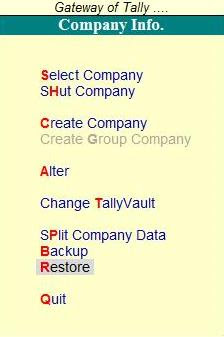
You will notice there that the last used Source and Destination path is displayed here.
The source field should have the full directory name from where you want to bring back the previous data. As you enter the full directory name, it will read the contents of the particular file and will then display the list of companies available.
In the Destination field mention the location on the hard disk where the company data needs to be copied back.
The companies available at the specified directory at the source field are found in the list. It means that the backup of these companies are available at the location mentioned in the Source field. There you have to select the companies you want to be restored. Then press 'y' to start restoration.
Restoration is possible only if you have taken back up earlier. If there is no back up, restoration is not possible. Back up is quiet an important task for all companies.
Restoration can be done in the following process:
Press Alt + F3 at Gateway of Tally to open the Company Info menu. Then there select the option Restore. It will take you to the 'Select Companies to Restore' screen.

You will notice there that the last used Source and Destination path is displayed here.
The source field should have the full directory name from where you want to bring back the previous data. As you enter the full directory name, it will read the contents of the particular file and will then display the list of companies available.
In the Destination field mention the location on the hard disk where the company data needs to be copied back.
The companies available at the specified directory at the source field are found in the list. It means that the backup of these companies are available at the location mentioned in the Source field. There you have to select the companies you want to be restored. Then press 'y' to start restoration.
Jun 27, 2010
Back up
When we work in Tally the company data is stored in Hard Disk but for safety a copy of data should always be kept in another media like CD, Floppy, etc. The data can also be kept in Hard Disk. The process of keeping another copy of the data in another place is known as Back Up.
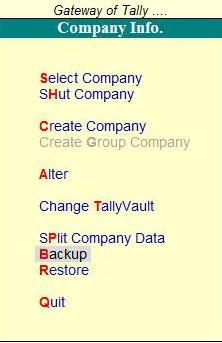
Go to Company Info menu from Gateway of Tally by pressing Alt + F3, select the option 'Backup' there. Then it will take you to "Select Companies to Backup" screen.
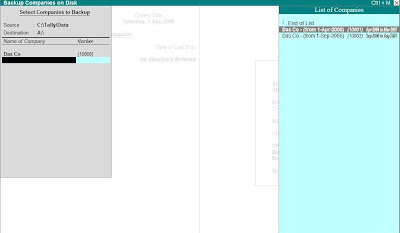 There you have to enter the following details:
Go to Company Info menu from Gateway of Tally by pressing Alt + F3, select the option 'Backup' there. Then it will take you to "Select Companies to Backup" screen.

 There you have to enter the following details:
- Source : It is generally taken by default. Here the user needs to enter the full directory name where the company data is stored.
- Destiation : Here the user has to enter the full directory name where the backup data is to be stored.
- Name of Company : Here the user has to select the names of the company from the given list whose data is to be copied. More than one company can be selected and once the user is done with the selection, the user needs to select End of List and click on 'Yes' at Accept? to start the backup process.
- Multi Volume Backup : When there is huge volume of data and one media is insufficient to store the complete data then Tally will prompt the user to insert second disk.
Jun 26, 2010
Creating Tally Vault for a Existing company
If Tally Vault Password is not entered at the time of company creation, it doesn't mean that the Tally Vault can no more be activated for that company. For an existing company first load the desired company then press Alt + F3 to open Company Info menu.

Then select the option Change TallyVault option. There you have to again select the company which you want to secure. Then you have to enter new Tally Vault Password and again give the same password in the field Repeat New Password.


Then select the option Change TallyVault option. There you have to again select the company which you want to secure. Then you have to enter new Tally Vault Password and again give the same password in the field Repeat New Password.

Jun 25, 2010
Creating Tally Vault for a New Company
In order to create Tally Vault for a new company you have to enter the Tally Vault password at the company creation screen and again repeat the same in the field 'Repeat'. The password should not be the same as entered by the administrator. The Tally vaulted company will no longer be shown in the list of companies, instead of the name of the company asterisks(*) will be shown in order to denote that company.
If more than one Tally vaulted company then you have to identify the company by serial number.

If more than one Tally vaulted company then you have to identify the company by serial number.

Subscribe to:
Posts (Atom)

Important Links and searches


