skip to main |
skip to sidebar
Latest Entries »
To Create Attendance/Production Type go to Gateway of Tally -> Payroll Info -> Attendance/Production Types -> Create. Then the Attendance/Production Types screen will appear where you have to enter the following details :

Name : Here in this field enter the name of the Attendance/Production Types. For example Casual Leave or Overtime Allowance.
Alias : Here you can enter any other name of the Attendance/Production Types.
Under : Here select the appropriate option from the List of Attendance/Production Types that appears. In case of other master records, Attendance/Production Types may also be defined in hierarchical groups. For example an Attendance Type named Paid Leave may be selected under primary. Then the other Attendance Types like Casual Leave, Sick Leave may be created under 'Paid Leave'.
Attendance Type : Here select the appropriate Attendance Type from the list that appears.
Period Type/Unit : This field will appear automatically in case the Attendance Type is 'Attendance /Leave with Pay' or 'Leave without Pay' but if the attendance type is Production you have to select the appropriate Unit from the list of Units.
Then Accept to Save.
A Unit (work) in Payroll matters is a unit of measure which helps in calculation of a Pay Head value based on Production. For example, hour, minutes to measure the duration of work. In case of Inventory, Units can be of two types - Simple
- Compound
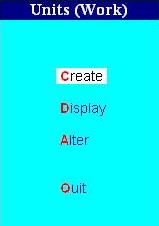
Unit(work) - Simple In Tally a Simple unit is a single independent unit and has no relationship with other units. In order to create 'Simple' Payroll Units go to Gateway of Tally -> Payroll Info -> Unit(Work) -> Create. The Unit creation screen will appear, where you have to enter the following informations :

- Type : 'Simple' will automatically appear in this field.
- Symbol : In this field type the symbol to be used for the unit. For example it can be 'min' for minute, 'hr' for Hour and so on.
- Formal Name : Here the Name of the unit is to be entered like Hour, Minute, etc.
- Number of Decimal Places : Specify upto how many decimal places the fraction can be displayed if the unit van be denoted in fration.
Unit (Work) - Compound When two units created under the type simple is co-related using an arithmetical relationship, it is termed as a Compound Unit. To create a Compound Unit open the Unit (Work) creation screen as mentioned above. In the creation screen enter the following details :

- Type : In this field first press backspace key and then select 'Compound' from the Type of units list.
- First Unit : Here select the unit which is being defined. For example 1 hr = 60 mins, then first unit is 'hr'.
- Conversion : Here you have to enter the figure which when multiplied with the First unit will result in the Second Unit.
- Second Unit : Here select the relevant unit from the list of created units.
In Order to suit the other requirements you can configure the salary details. In order to set the configuration Press F12 or click on the F12: Configure button at the Salary Details Creation or Alteration Screen. The Salary Details Configuration screen will appear where you will see the following options available :
Allow to Override Slab Percentage : If you don't want to make any change in the slab percentage then set this field as "No". You can override or change the percentages already given by setting this field to "Yes". Show Pay Head Type : If you want to display the Pay Head Type in the Salary Details Screen select this field as "Yes". If you don't want that set "No". Show Calculation Type : If you want the Calculation Type of the selected Pay Head to be shown on the Salary Details Screen then set this field to "Yes" or else set it "No". Show Computed On : Set "Yes" if computation details, if any for a Pay Head is to be displayed at the Salary Details Screen. If not select "No".
The structure of payment to the employees are stated using the option 'Salary Details'. Structure of Payment means the break up of their salary that is showing the various components or Pay Heads. The Pay Structure can be defined both for Single Employee as well as Employee Groups.It is often seen that employees belonging to a particular group have the same salary structure. In this case we don't need to provide salary structure for individual employees. We can provide salary details for the Employee Group and then tag the employees with the salary details of their respective Employee Group. It will save a lot of time.To Create Salary Details for an Employee Group, go to Gateway of Tally -> Payroll Info -> Salary Details -> Create. From the Given List of Groups or Employees, select the Employee Group for which the Salary Details is to be defined. After that the Salary Details Screen will appear. There you have to enter the following info : Effective From : In this field enter the date from when the pay structure is applicable. Tally takes this date automatically in case of first pay structure details. The date automatically taken is same as the Books Beginning From Date that means the date mentioned during Company Creation. The user can specify the "Effective From date" for subsequent pay structure.Pay Head : In this field select the relevant Pay Heads from the List of Pay Heads given.Pay Head Type, Calculation Type and Computed on : This fields will display the details provided while creating the Pay Head.Rate : Wherever applicable enter the rates of periodic payment.Accept to Save.
If you want to create more than one employee at a single screen go to Gateway of Tally -> Payroll Info -> Employees-> Create(under multiple Employees). The Multiple Employee creation screen will appear where you have to enter relevant details as shown in the picture :
Employee creations is very vital for processing Payroll Transactions. All information and details regarding individual employees are to be entered through the Employees option.
Employee CreationIn order to create an employee go to Gateway of Tally -> Payroll Info -> Employees -> Create. The Employee Creation will appear where you have to enter the following details :
 Category : 'Primary Cost Category' is taken by default in this field.
Name : Here you have to enter the name of the employee.
Alias : Here give any other name of the employee, if any.
Under : Here in this field select the Employee Group from the List of Employee Groups.
Date of Joining : Mention the date on which the employee joined the organisation.
General Info : In this field information about the employee is to be entered i.e. employee's code, designation, place of duty, personal details like date of birth, blood group, address etc.
Payment Details : Here you have to enter the bank details of the employee.
Statutory Details : Statutory Details like PAN, PF No. ESI No. are to be entered here.
Passport & Visa Details : Here you have to mention the Passport and Visa No. along with their date of expiry.
Contract Details : Here you have to mention Contract related informations.
After you are done, Accept to save.
Employee Group Display
You can see the master records as you have seen before in case of Accounting and Inventory Record Maintenance. In order to view your employee Group go to Gateway of Tally -> Payroll Info -> Employee Groups -> Display. Employee Group Alteration
In the same way you can alter the Employee Group created. In order to alter Employee Group go to Gateway of Tally -> Payroll Info -> Employee Groups -> Alter.
Employee Group Deletion
In case you have created a group by mistake and you don't want that Employee Group anymore then go to Gateway of Tally -> Payroll Info -> Employee Groups -> Alter and Press Alt + D.
NOTE : If any employee is tagged to the Employee Group you want to delete then the Group cannot be deleted.

Employees can be categorized in the same way as in case of ledgers and stock units. Employees can be grouped on the basis of their designation, department, location, etc.
This function of grouping employees facilitates in keeping employee details tagged to their respective groups. For example if salary details are defined for groups specifying salary details for individual employee separately is not required.

Employee Group Creation
To Create Employee Group go to Gateway of Tally -> Payroll Info -> Employee Groups -> Create(under Single Group). Then the Group Creation Screen will open. There you have to fill the following field.Category : In this field 'Primary Cost Category' will appear by default.
Name : Here enter the name of the Employee Group you want to create.
Alias : Here you can give another name for the group, if any.
Under : Here select the group from the List of Employee Groups under which this Group falls. If the Group you are creating is a Top Level group or you have not created any group yet, then you have to select primary.You can also create sub groups under a group. For example you can create sub-groups like Accounts Manager, Accounts Officer under the group 'Accounts'. For that enter 'Accounts Manager' in the name field and in the Under field select 'Accounts'. In this case 'Accounts' group should be created earlier.
After you are done Accept to save the Employee Group.
For processing the salary a Salary Payable ledger is to be created as a Pay Head. In order to create Salary Payable Pay Head Go to Payroll Info -> Pay Heads -> Create from Gateway of Tally. Then the Pay Head Creation Screen Will appear. There you have to enter the following details :
 Name : Here you have to enter the name of the pay head you want to create.Alias : Here enter any other name of the Pay Head, if any.
Pay Head Types : In this field select Not Applicable from the list of pay heads types.
Under : Here select Current Liabilities from the given list.
Accept in order save the Pay Head.
When salary is disbursed, this account is to be debited and Cash or Bank account is to be credited.
The first thing you need to do is go to Payroll Info -> Pay Heads -> Create. As you select and press enter on create the Pay Head Creation Screen will appear. In this screen you have to enter the relevant information. You have to fill up the following fields-Here It is shown for Earning Pay Head :
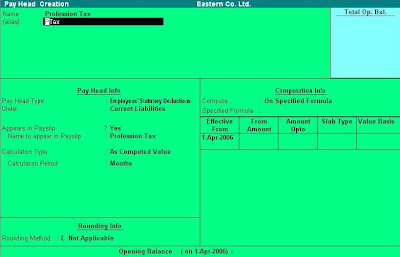
- Pay Head Type : Here select the option Employees Statutory Deductions as the amount will be deducted from the Gross pay of the employee as per statutory regulations.
- Under : Here in this field select Current Liability as the organisation is liable to pay the amount so deducted to the concerned government authorities.
- Calculation Type : Here select 'As Computed Value' from the options as the amount of this Pay Head is dependent on the value of other Pay heads like Basic, HRA, Conveyance, etc.
Computation Info : Here in this Part you have to give the necessary details for computation of Professional Tax. It is described below :
Compute : As the amount of profession tax is based on selected earning pay heads, select 'On Specified Formula'. After selection of the option select the Pay Heads involved and specify the formula and then specify the slab. Select 'Percentage' in slab type column if the amount is calculated on percentage basis. If the amount is a fixed value specify 'Value Basis' in the Slab Type Column.
After you are done with the selection Accept to save the Pay Head.
Other Pay Heads can also be Created in a similar way.
After you have entered the above, select the Calculation Period Type from the list-
- Calculation Period : Here select the appropriate calculation period.
- Rounding Method : From the Given list, select the applicable rounding method.
- Computation Info : If "As Computed Value" is selected as the Calculation Type, provide the necessary details for computation method in this section. After that Accept to save Pay Head. You can also create Earning Pay Heads for Basic, DA, Conveyance, HRA and so on.
After details regarding Pay Heads are entered, select earnings for employees as the Pay Head Type from the List of Pay Head Types :
Under : Here the user has to select the appropriate group from the list of Groups given there.
Appears in Payslip : Here provide the information whether you want the the Payslip appear in Pay Heads, by selecting 'yes' or 'No'.
Name to appear in Payslip : In Case you have selected 'Yes' in the previous field, give the name that will appear in the Payslip. The text in the Name field will appear by default, which can be changed.
Calculation Type : The following five methods of computing the various Pay Heads are provided by Tally-
As Computed Value : In case the value of the pay head is dependent on other Pay heads this method is to be selected. Here you can define the dependent component by specifying the formula or using the current sub-total or current earning or deduction total. Not only that the slab either by percentage or value can also defined.
As user defined value : In case of Pay Heads with variable values, this method is selected. It will allow the user to manually enter the value at the time of processing the salary.
Flat rate : In cases where the value of the pay head is a fixed amount for a period, this method is applicable.
On Attendance : When the amount of salary is dependent on the attendance data of the employees and the components will get pro-rated based on the attendance, this method is selected.
On Production : This method is used to calculate the production incentive type of pay head.
For Payroll Accounting all master records are created through Payroll Info. Select Payroll Info from Gateway of Tally. Payroll Info menu allows you to set up the employee details and standard payroll information, with common payroll fields. It is also used for calculating earning
and deductions.
Noe lets learn the utility and process of creating the payroll master records.
PAY HEADS
For creating all the compondnts, which form a part of the salary structure of the employees, Pay Head is used. The salary includes Basic, Dearness Allowance(DA), House Rent allowance(HRA), Conveyance, Provident Fund(PF) contribution, Professional tax and so on. These components and their amount may vary from employee to employee.
In order to create a pay head which is an earning to the employee. From the payroll info menu go to Pay Heads -> Create.
Then pay head creation screen will appear where you have to fill up the following informations.
Name : Here you have to give the name of the Earning Pay Head.
Alias : Here enter the other name of the Pay Head, if any.
Pay Head Type : The following Pay Heads are provided by Tally-
- Deduction from Employees : If any amount of money is to be deducted from the salary of the employee.
- Earnings of the Employee : When there is Basic, DA, HRA, Conveyence and so on.
- Employee's Statutory Deduction : It is for the purpose of PF and professional tax, etc.
- Employer's Statutory Contribution : It is for the purpose of PF, ESI, etc.
- Gratuity : For Pay Heads which relate Gratuity.
- Loans and Advances : For employees who has Loans and Advances related to their Pay Heads.
- Reimbursements to Employees : In certain cases Employer provide the expense incurred by the Employee, like Traveling Expenses.
- Not Applicable : In case of 'Salary Payable' Pay Head this is to be selected. It will be used for recording processing of salary.
The Payroll Accounting is done in different stages. The stages are as follows :
Stage 1
Pay Heads Creation
Pay Head means the components of a salary structure. For example- Basic, Dearness Allowance(DA), House Rent Allowance(HRA), Provident Fund(PF), etc.
Stage 2
Recording Details of the employees
From Employee masters, employee details are to be recorded. Employees can also be grouped on the basis of their designation or department.
Stage 3
Defining Salary Structure
The contents of the salary structure and the basis of their computation are defined using the Salary Details option. Salary Details can be set for both grouped employees and individual employees.
Stage 4
Payroll Processing and Generating Payslip
Payroll Voucher is to be entered to record salary processing details. Salary Payslip for all employees also needs to be generated which not only provides the employees attendance but also the earning components and deductions of the employee, and show the net amount paid to him for the pay period.
Details of this Stages will be provided in the next post.
For Payroll setup configuration you have to Press F12 and then from there select Payroll Configuration.
After you have selected, the payroll configuration screen appears.
Enter the following details there:
Show statutory details : If you want to maintain the record of
Provident Fund, Employees state insurance and pan details nd print the
same in the payslips then set this option as 'yes'.
Show Passport and Visa details : Set this option 'yes' in order to
display passport and visa details of employees in Export Reports
generated by Tally.
Show contract details : In order to display the contract starting date and expiry date of employees, this option needs to be set to 'yes'.
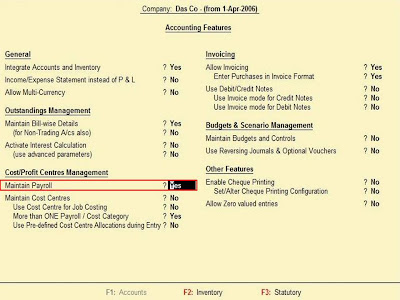
Generally Payroll is not activated in Tally. If you want to activate Payroll accounting in Tally then Press F11 to open the company features menu. Then press F1 to open Accounting Features. Finally set the field "Maintain Payroll" and "More than ONE Payroll/Cost Category" to 'yes'.
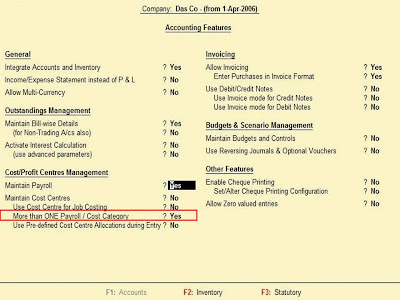
The option "More than ONE Payroll/Cost Category" is to be set yes if payroll processing is to done for multiple groups of employees.
Payroll : It is series of accounting transactions dealing with payment of employees for services rendered by them, after processing of various statutory requirements.
It not only just includes salaries but wages, commission, bonus, vacation allowances, sick-leave pay and value of taxable fringe benefits also. It also includes statutory deductions of money from the employees, like provident fund, employees state insurance, professional tax and so on.
The Payroll feature is very useful as it is integrated with accounting to give the user the benefits of simplified Payroll processing and accounting.