
For Payroll setup configuration you have to Press F12 and then from there select Payroll Configuration.
After you have selected, the payroll configuration screen appears.
Enter the following details there:
Show statutory details : If you want to maintain the record of
Provident Fund, Employees state insurance and pan details nd print the
same in the payslips then set this option as 'yes'.
Show Passport and Visa details : Set this option 'yes' in order to
display passport and visa details of employees in Export Reports
generated by Tally.
Show contract details : In order to display the contract starting date and expiry date of employees, this option needs to be set to 'yes'.
Latest Entries »
Jul 3, 2010
Jun 30, 2010
How to Activate Payroll in Tally?
Generally Payroll is not activated in Tally. If you want to activate Payroll accounting in Tally then Press F11 to open the company features menu. Then press F1 to open Accounting Features. Finally set the field "Maintain Payroll" and "More than ONE Payroll/Cost Category" to 'yes'.
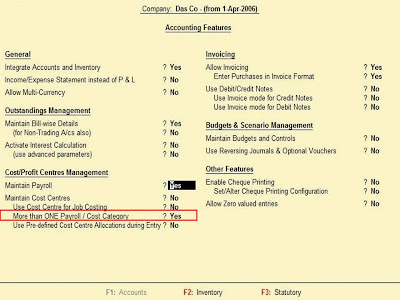
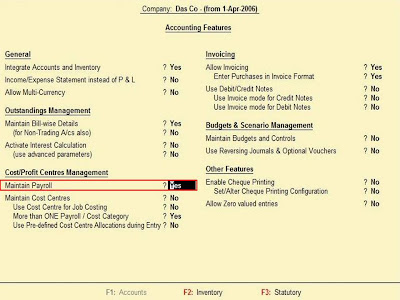
The option "More than ONE Payroll/Cost Category" is to be set yes if payroll processing is to done for multiple groups of employees.


The option "More than ONE Payroll/Cost Category" is to be set yes if payroll processing is to done for multiple groups of employees.
Jun 29, 2010
What is Payroll?
Payroll : It is series of accounting transactions dealing with payment of employees for services rendered by them, after processing of various statutory requirements.
It not only just includes salaries but wages, commission, bonus, vacation allowances, sick-leave pay and value of taxable fringe benefits also. It also includes statutory deductions of money from the employees, like provident fund, employees state insurance, professional tax and so on.
The Payroll feature is very useful as it is integrated with accounting to give the user the benefits of simplified Payroll processing and accounting.
It not only just includes salaries but wages, commission, bonus, vacation allowances, sick-leave pay and value of taxable fringe benefits also. It also includes statutory deductions of money from the employees, like provident fund, employees state insurance, professional tax and so on.
The Payroll feature is very useful as it is integrated with accounting to give the user the benefits of simplified Payroll processing and accounting.
Rewriting
If some problem arises in reading the data then in that case rewriting or repairing of data is to be done. In order to rewrite or repair press Ctrl + Alt + R at Gateway of tally and select the company that is to be rewritten. Press 'y' to start rewrite.
NOTE: It is advised that a back up should be kept before rewriting as Tally drops those data which are incomplete or damaged. Tally writes the reference of dropped data in a file tally.rew, its contents can be viewed using any text editor like notepad.

NOTE: It is advised that a back up should be kept before rewriting as Tally drops those data which are incomplete or damaged. Tally writes the reference of dropped data in a file tally.rew, its contents can be viewed using any text editor like notepad.

Jun 28, 2010
Restore
If the data stored in your hard disk get damaged or deleted for reasons below your control. In such a sitution you can get back the data by copying back the data kept at another place through Back Up process. This process of getting back the data is known as Restoration of Data.
Restoration is possible only if you have taken back up earlier. If there is no back up, restoration is not possible. Back up is quiet an important task for all companies.
Restoration can be done in the following process:
Press Alt + F3 at Gateway of Tally to open the Company Info menu. Then there select the option Restore. It will take you to the 'Select Companies to Restore' screen.
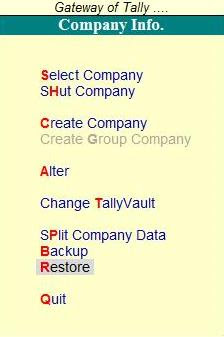
You will notice there that the last used Source and Destination path is displayed here.
The source field should have the full directory name from where you want to bring back the previous data. As you enter the full directory name, it will read the contents of the particular file and will then display the list of companies available.
In the Destination field mention the location on the hard disk where the company data needs to be copied back.
The companies available at the specified directory at the source field are found in the list. It means that the backup of these companies are available at the location mentioned in the Source field. There you have to select the companies you want to be restored. Then press 'y' to start restoration.
Restoration is possible only if you have taken back up earlier. If there is no back up, restoration is not possible. Back up is quiet an important task for all companies.
Restoration can be done in the following process:
Press Alt + F3 at Gateway of Tally to open the Company Info menu. Then there select the option Restore. It will take you to the 'Select Companies to Restore' screen.

You will notice there that the last used Source and Destination path is displayed here.
The source field should have the full directory name from where you want to bring back the previous data. As you enter the full directory name, it will read the contents of the particular file and will then display the list of companies available.
In the Destination field mention the location on the hard disk where the company data needs to be copied back.
The companies available at the specified directory at the source field are found in the list. It means that the backup of these companies are available at the location mentioned in the Source field. There you have to select the companies you want to be restored. Then press 'y' to start restoration.
Jun 27, 2010
Back up
When we work in Tally the company data is stored in Hard Disk but for safety a copy of data should always be kept in another media like CD, Floppy, etc. The data can also be kept in Hard Disk. The process of keeping another copy of the data in another place is known as Back Up.
Go to Company Info menu from Gateway of Tally by pressing Alt + F3, select the option 'Backup' there. Then it will take you to "Select Companies to Backup" screen.
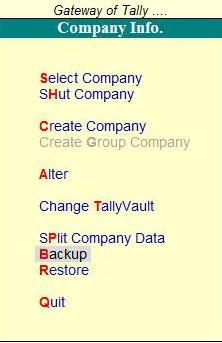
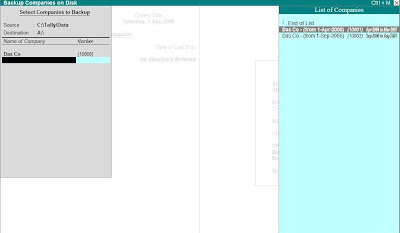 There you have to enter the following details:
Go to Company Info menu from Gateway of Tally by pressing Alt + F3, select the option 'Backup' there. Then it will take you to "Select Companies to Backup" screen.

 There you have to enter the following details:
- Source : It is generally taken by default. Here the user needs to enter the full directory name where the company data is stored.
- Destiation : Here the user has to enter the full directory name where the backup data is to be stored.
- Name of Company : Here the user has to select the names of the company from the given list whose data is to be copied. More than one company can be selected and once the user is done with the selection, the user needs to select End of List and click on 'Yes' at Accept? to start the backup process.
- Multi Volume Backup : When there is huge volume of data and one media is insufficient to store the complete data then Tally will prompt the user to insert second disk.
Subscribe to:
Comments (Atom)

Important Links and searches


