Latest Entries »

Aug 19, 2010

Attendance/Production Type Creation in Payroll

To Create Attendance/Production Type go to Gateway of Tally -> Payroll Info -> Attendance/Production Types -> Create. Then the Attendance/Production Types screen will appear where you have to enter the following details :


Name :
Here in this field enter the name of the Attendance/Production Types. For example Casual Leave or Overtime Allowance.

Alias :
Here you can enter any other name of the Attendance/Production Types.

Under :
Here select the appropriate option from the List of Attendance/Production Types that appears. In case of other master records, Attendance/Production Types may also be defined in hierarchical groups. For example an Attendance Type named Paid Leave may be selected under primary. Then the other Attendance Types like Casual Leave, Sick Leave may be created under 'Paid Leave'.

Attendance Type :
Here select the appropriate Attendance Type from the list that appears.

Period Type/Unit :
This field will appear automatically in case the Attendance Type is 'Attendance /Leave with Pay' or 'Leave without Pay' but if the attendance type is Production you have to select the appropriate Unit from the list of Units.

Then
Accept to Save.

Aug 18, 2010

Free Download Tally.ERP 9 Series A Release 2.0

Some of the Key Features of this version
  • Access Information on the fly Via SMS
  • Work Universally
  • Safeguard Data - Automated Backup and Recovery
  • Assess Knowledge Levels of Employees and many others.


Download Link


Tally.ERP 9 Series A Release 2.0 Full Installer (Build 307) , with Reference Manual


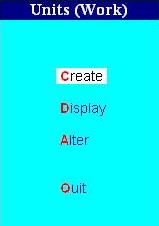
Unit (Work) Creation in Payroll

A Unit (work) in Payroll matters is a unit of measure which helps in calculation of a Pay Head value based on Production. For example, hour, minutes to measure the duration of work. In case of Inventory, Units can be of two types
  1. Simple
  2. Compound
Unit(work) - Simple In Tally a Simple unit is a single independent unit and has no relationship with other units. In order to create 'Simple' Payroll Units go to Gateway of Tally -> Payroll Info -> Unit(Work) -> Create. The Unit creation screen will appear, where you have to enter the following informations :

  • Type : 'Simple' will automatically appear in this field.
  • Symbol : In this field type the symbol to be used for the unit. For example it can be 'min' for minute, 'hr' for Hour and so on.
  • Formal Name : Here the Name of the unit is to be entered like Hour, Minute, etc.
  • Number of Decimal Places : Specify upto how many decimal places the fraction can be displayed if the unit van be denoted in fration.


Unit (Work) - Compound
When two units created under the type simple is co-related using an arithmetical relationship, it is termed as a Compound Unit. To create a Compound Unit open the Unit (Work) creation screen as mentioned above. In the creation screen enter the following details :

  • Type : In this field first press backspace key and then select 'Compound' from the Type of units list.
  • First Unit : Here select the unit which is being defined. For example 1 hr = 60 mins, then first unit is 'hr'.
  • Conversion : Here you have to enter the figure which when multiplied with the First unit will result in the Second Unit.
  • Second Unit : Here select the relevant unit from the list of created units.

Aug 14, 2010

Salary Details Configuration in Payroll

In Order to suit the other requirements you can configure the salary details. In order to set the configuration Press F12 or click on the F12: Configure button at the Salary Details Creation or Alteration Screen. The Salary Details Configuration screen will appear where you will see the following options available :


Allow to Override Slab Percentage :
If you don't want to make any change in the slab percentage then set this field as "No". You can override or change the percentages already given by setting this field to "Yes".

Show Pay Head Type : If you want to display the Pay Head Type in the Salary Details Screen select this field as "Yes". If you don't want that set "No".

Show Calculation Type : If you want the Calculation Type of the selected Pay Head to be shown on the Salary Details Screen then set this field to "Yes" or else set it "No".

Show Computed On : Set "Yes" if computation details, if any for a Pay Head is to be displayed at the Salary Details Screen. If not select "No".

Aug 13, 2010

Generation of Quotations in Tally.ERP 9

Tally.ERP 9 is now provided with a new feature. Now Quotations can be generated using this software.

In order to Generate Quotations go to
Gateway of Tally -> F11 (Company Features) -> Accounting Features -> Budgets & Scenario Management -> Use Reversing Journal & Optional Vouchers -> set "Yes".

Then again go to
Gateway of Tally -> F11 (Company Features) -> Inventory Features -> Order Processing -> Allow Sales Order Processing -> set to "Yes".

Then go to
Gateway of Tally -> Inventory Vouchers -> Alt+F5 to Select "Sales Order" -> Ctrl + L to Set "Optional" -> Create "Quotation" like delivery challan / sales invoice: save it.


Now your Quotation is ready to view and print this:


In order to Print

Gateway of Tally > Display > Exception Reports > Optional Vouchers > here you will get your saved quotation. If you "Print" this- this would be printed as "Quotation".


Tip of the Week by
ANITA INTERNATIONAL

Thanks for the Post.

Aug 12, 2010

Salary Details for Employees Group

The structure of payment to the employees are stated using the option 'Salary Details'. Structure of Payment means the break up of their salary that is showing the various components or Pay Heads. The Pay Structure can be defined both for Single Employee as well as Employee Groups.

It is often seen that employees belonging to a particular group have the same salary structure. In this case we don't need to provide salary structure for individual employees. We can provide salary details for the Employee Group and then tag the employees with the salary details of their respective Employee Group. It will save a lot of time.

To Create Salary Details for an Employee Group, go to Gateway of Tally -> Payroll Info -> Salary Details -> Create.

From the Given List of Groups or Employees, select the Employee Group for which the Salary Details is to be defined. After that the Salary Details Screen will appear. There you have to enter the following info :

Effective From : In this field enter the date from when the pay structure is applicable. Tally takes this date automatically in case of first pay structure details. The date automatically taken is same as the Books Beginning From Date that means the date mentioned during Company Creation. The user can specify the "Effective From date" for subsequent pay structure.

Pay Head : In this field select the relevant Pay Heads from the List of Pay Heads given.

Pay Head Type, Calculation Type and Computed on : This fields will display the details provided while creating the Pay Head.

Rate : Wherever applicable enter the rates of periodic payment.

Accept to Save.
Related Posts with Thumbnails

Important Links and searches

Your Ad Here