skip to main |
skip to sidebar
Latest Entries »
Employee Group Display
You can see the master records as you have seen before in case of Accounting and Inventory Record Maintenance. In order to view your employee Group go to Gateway of Tally -> Payroll Info -> Employee Groups -> Display. Employee Group Alteration
In the same way you can alter the Employee Group created. In order to alter Employee Group go to Gateway of Tally -> Payroll Info -> Employee Groups -> Alter.
Employee Group Deletion
In case you have created a group by mistake and you don't want that Employee Group anymore then go to Gateway of Tally -> Payroll Info -> Employee Groups -> Alter and Press Alt + D.
NOTE : If any employee is tagged to the Employee Group you want to delete then the Group cannot be deleted.

Employees can be categorized in the same way as in case of ledgers and stock units. Employees can be grouped on the basis of their designation, department, location, etc.
This function of grouping employees facilitates in keeping employee details tagged to their respective groups. For example if salary details are defined for groups specifying salary details for individual employee separately is not required.

Employee Group Creation
To Create Employee Group go to Gateway of Tally -> Payroll Info -> Employee Groups -> Create(under Single Group). Then the Group Creation Screen will open. There you have to fill the following field.Category : In this field 'Primary Cost Category' will appear by default.
Name : Here enter the name of the Employee Group you want to create.
Alias : Here you can give another name for the group, if any.
Under : Here select the group from the List of Employee Groups under which this Group falls. If the Group you are creating is a Top Level group or you have not created any group yet, then you have to select primary.You can also create sub groups under a group. For example you can create sub-groups like Accounts Manager, Accounts Officer under the group 'Accounts'. For that enter 'Accounts Manager' in the name field and in the Under field select 'Accounts'. In this case 'Accounts' group should be created earlier.
After you are done Accept to save the Employee Group.
For processing the salary a Salary Payable ledger is to be created as a Pay Head. In order to create Salary Payable Pay Head Go to Payroll Info -> Pay Heads -> Create from Gateway of Tally. Then the Pay Head Creation Screen Will appear. There you have to enter the following details :
 Name : Here you have to enter the name of the pay head you want to create.Alias : Here enter any other name of the Pay Head, if any.
Pay Head Types : In this field select Not Applicable from the list of pay heads types.
Under : Here select Current Liabilities from the given list.
Accept in order save the Pay Head.
When salary is disbursed, this account is to be debited and Cash or Bank account is to be credited.
The first thing you need to do is go to Payroll Info -> Pay Heads -> Create. As you select and press enter on create the Pay Head Creation Screen will appear. In this screen you have to enter the relevant information. You have to fill up the following fields-Here It is shown for Earning Pay Head :
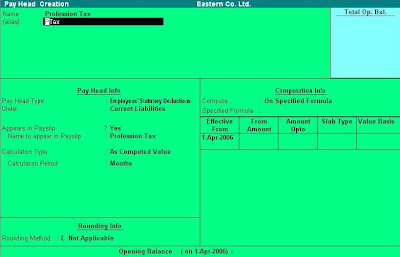
- Pay Head Type : Here select the option Employees Statutory Deductions as the amount will be deducted from the Gross pay of the employee as per statutory regulations.
- Under : Here in this field select Current Liability as the organisation is liable to pay the amount so deducted to the concerned government authorities.
- Calculation Type : Here select 'As Computed Value' from the options as the amount of this Pay Head is dependent on the value of other Pay heads like Basic, HRA, Conveyance, etc.
Computation Info : Here in this Part you have to give the necessary details for computation of Professional Tax. It is described below :
Compute : As the amount of profession tax is based on selected earning pay heads, select 'On Specified Formula'. After selection of the option select the Pay Heads involved and specify the formula and then specify the slab. Select 'Percentage' in slab type column if the amount is calculated on percentage basis. If the amount is a fixed value specify 'Value Basis' in the Slab Type Column.
After you are done with the selection Accept to save the Pay Head.
Other Pay Heads can also be Created in a similar way.
After you have entered the above, select the Calculation Period Type from the list-
- Calculation Period : Here select the appropriate calculation period.
- Rounding Method : From the Given list, select the applicable rounding method.
- Computation Info : If "As Computed Value" is selected as the Calculation Type, provide the necessary details for computation method in this section. After that Accept to save Pay Head. You can also create Earning Pay Heads for Basic, DA, Conveyance, HRA and so on.
After details regarding Pay Heads are entered, select earnings for employees as the Pay Head Type from the List of Pay Head Types :
Under : Here the user has to select the appropriate group from the list of Groups given there.
Appears in Payslip : Here provide the information whether you want the the Payslip appear in Pay Heads, by selecting 'yes' or 'No'.
Name to appear in Payslip : In Case you have selected 'Yes' in the previous field, give the name that will appear in the Payslip. The text in the Name field will appear by default, which can be changed.
Calculation Type : The following five methods of computing the various Pay Heads are provided by Tally-
As Computed Value : In case the value of the pay head is dependent on other Pay heads this method is to be selected. Here you can define the dependent component by specifying the formula or using the current sub-total or current earning or deduction total. Not only that the slab either by percentage or value can also defined.
As user defined value : In case of Pay Heads with variable values, this method is selected. It will allow the user to manually enter the value at the time of processing the salary.
Flat rate : In cases where the value of the pay head is a fixed amount for a period, this method is applicable.
On Attendance : When the amount of salary is dependent on the attendance data of the employees and the components will get pro-rated based on the attendance, this method is selected.
On Production : This method is used to calculate the production incentive type of pay head.


