
Latest Entries »
Nov 18, 2009
Input Credit Form
If an organisation has the opportunity to adjust input credit of service tax paid on purchase of service, Tally will automatically generate input credit of service tax based on the transaction recorded by the user, a report called Input Credit Form. The report will display detailed information regarding the amount of input credit, that may be availed against payment of Service tax. The Input Credit Form should be printed after payment of the purcahse service bill. To get this report go to Display from Gateway of Tally, then select Statutory reports, from there select Service Tax Reports, there you can find the Input Credit Form.
TR-6 Challan for Submitting Service Tax
In order to submit Service Tax to the Government, TR-6 challan is required.To get this challan you have to go to Display menu from Gateway of Tally then go to statutory reports and then select Service Tax Reports, there you will get Tr-6 challan. You can get the print configuration screen of TR-6 challan. To print TR-6 challan set the options there as per your requirement and Press 'y' at the "Print?" screen.

Nov 13, 2009
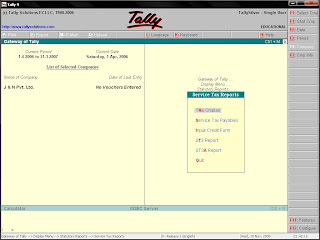
Service Tax Report
Various reports are generated by Tally which can be viewed in a very easy manner. For viewing the reports from Gateway of Tally -> Display -> Statutory reports -> Service Tax reports.
Nov 12, 2009
Deposit of Service Tax
A payment voucher is to be created, for depositing the Service Tax. Then select the Service Tax account. Here the bill allocation screen will appear. Then Select the respective bills against which tax is payable by selecting Agst Ref in Type of Ref and by default the amount payable appears.
Nov 11, 2009
Input Service Tax
There might be organiations which are both service providers as well as service users. For example an IT training institute is a service provider, the institute also uses telecom services like the telephone.According to tax rule this charges can be adjusted with service tax payable by the institutes for the services rendered by it. Therefor the net amount is payable by the institute, the adjustment is known as availing Input Tax credit.
Input Credit Ratio
Press F11 and then press F3 to go to Statutory and Taxation Features, while providing company Service Tax details, at Credit Adjustment(%), enter the rate of Service Tax credit.
Then give the percentage, which is normally 20%, where input service is not exclusively used for the output service. If the input service is used solely for output service, then in that case the Credit Adjustment rate should be 100%. The percentage rate shows how much input credit is to be adjusted(i.e., 20% or 100%).
Service Purchase Ledger Adjustment
Then create Service Purchase Ledger account under the group Duties and Taxes.
Purchase Voucher Entry
Here Create a Purchase Voucher and enter the name of the party, i.e., from whom service is being purchased and the total bill amount(including service tax). In the bill allocation screen, details of the bill are to be entered by selecting the option New Ref. from type of Ref. In the purchase voucher, select service purchase ledger account and then Service Tax account and write the respective amounts from bill allocation details. The entry above can be done under voucher as well as Invoice mode, depending upon the circumstances.
Payment of Service Purchase Bill
For recording payment of service purchase bill, select the payment voucher and select the party account, from whom service has been purchased. At the Bill Allocation Screen, select the bill against which payment is to be made. Select Service Tax account and the amount paid against selected Service Bill.
Adjustment of Input Credit
To account for input credit, select payment voucher and select Service Tax Sales ledger account. From the Bill Allocation list, select the bills for which payment is to be made. Select the Service Tax purchase account and enter the bills for which adjustment of input credit needs to be availed. Finally, select bank account and enter net amount paid.
Challan for Balance Tax Deposit
After adjustment of input credit, TR 6 challan is required to be deposited with the Government while payment of Service Tax. Click Print button to get the TR6 challan print, at Payment voucher.
Abatement
We find a term Abatement, in the Service Tax details screen, which is shown as a deduction while calculating Service Tax. Sometimes it so happens that some materials are also supplied in addition to the service being provided. An abatement is allowed towards the value of the materials supplied as Service Tax is levied not on the value of materials but on the value of services. According to the service category, the abatement is shown as a percentage, fixed by the Government. The percentage is charged on the total amount of service income.
Input Credit Ratio
Press F11 and then press F3 to go to Statutory and Taxation Features, while providing company Service Tax details, at Credit Adjustment(%), enter the rate of Service Tax credit.
Then give the percentage, which is normally 20%, where input service is not exclusively used for the output service. If the input service is used solely for output service, then in that case the Credit Adjustment rate should be 100%. The percentage rate shows how much input credit is to be adjusted(i.e., 20% or 100%).
Service Purchase Ledger Adjustment
Then create Service Purchase Ledger account under the group Duties and Taxes.
Purchase Voucher Entry
Here Create a Purchase Voucher and enter the name of the party, i.e., from whom service is being purchased and the total bill amount(including service tax). In the bill allocation screen, details of the bill are to be entered by selecting the option New Ref. from type of Ref. In the purchase voucher, select service purchase ledger account and then Service Tax account and write the respective amounts from bill allocation details. The entry above can be done under voucher as well as Invoice mode, depending upon the circumstances.
Payment of Service Purchase Bill
For recording payment of service purchase bill, select the payment voucher and select the party account, from whom service has been purchased. At the Bill Allocation Screen, select the bill against which payment is to be made. Select Service Tax account and the amount paid against selected Service Bill.
Adjustment of Input Credit
To account for input credit, select payment voucher and select Service Tax Sales ledger account. From the Bill Allocation list, select the bills for which payment is to be made. Select the Service Tax purchase account and enter the bills for which adjustment of input credit needs to be availed. Finally, select bank account and enter net amount paid.
Challan for Balance Tax Deposit
After adjustment of input credit, TR 6 challan is required to be deposited with the Government while payment of Service Tax. Click Print button to get the TR6 challan print, at Payment voucher.
Abatement
We find a term Abatement, in the Service Tax details screen, which is shown as a deduction while calculating Service Tax. Sometimes it so happens that some materials are also supplied in addition to the service being provided. An abatement is allowed towards the value of the materials supplied as Service Tax is levied not on the value of materials but on the value of services. According to the service category, the abatement is shown as a percentage, fixed by the Government. The percentage is charged on the total amount of service income.
Receipt Voucher Entry for Service Bills
For receiving the service charge, a receipt voucher is required to be created. After the creation, go to the voucher and select the party ledger and then move on to the Sales Bill reference, against which the service charge is received. Enter the amount there and select Service Tax Ledger from the given list. The receipt voucher is ready to be given to the parties.
Subscribe to:
Posts (Atom)

Important Links and searches


